> ## Documentation Index
> Fetch the complete documentation index at: https://cloudanix.com/docs/llms.txt
> Use this file to discover all available pages before exploring further.
# Cloudanix Integration Guide - PagerDuty
> Configure the Cloudanix Integration
## Benefits of integrating PagerDuty with Cloudanix
* The Cloudanix integration alerts you for Security Incidents that could affect your Cloud infrastructure.
* PagerDuty ensures that the appropriate team is notified about findings like Malicious IP Activity and Brute Force Attacks. With intelligence from PagerDuty's alert grouping, reduce the noise with grouping similar alerts into a single issue.
## Requirements
Here are the pre-requisites for the integration:
* In PagerDuty, integration requires the following roles for configuration. Managers, Admins, Global Admins and Account Owners.
* In Cloudanix: Users with Admin Role. If you do not have this role, please reach out to an Admin for your Cloudanix Tenant.
## How it works
* This is a one-way integration from Cloudanix to PagerDuty. Cloudanix Event Findings (Threats, Anomalies or Malicious Activities) are sent to PagerDuty and those Findings create Incidents in PagerDuty Services.
## Support
If you need help with this integration, please contact [support@cloudanix.com](mailto:support@cloudanix.com)
## Steps to receive Cloudanix Event Findings through PagerDuty.
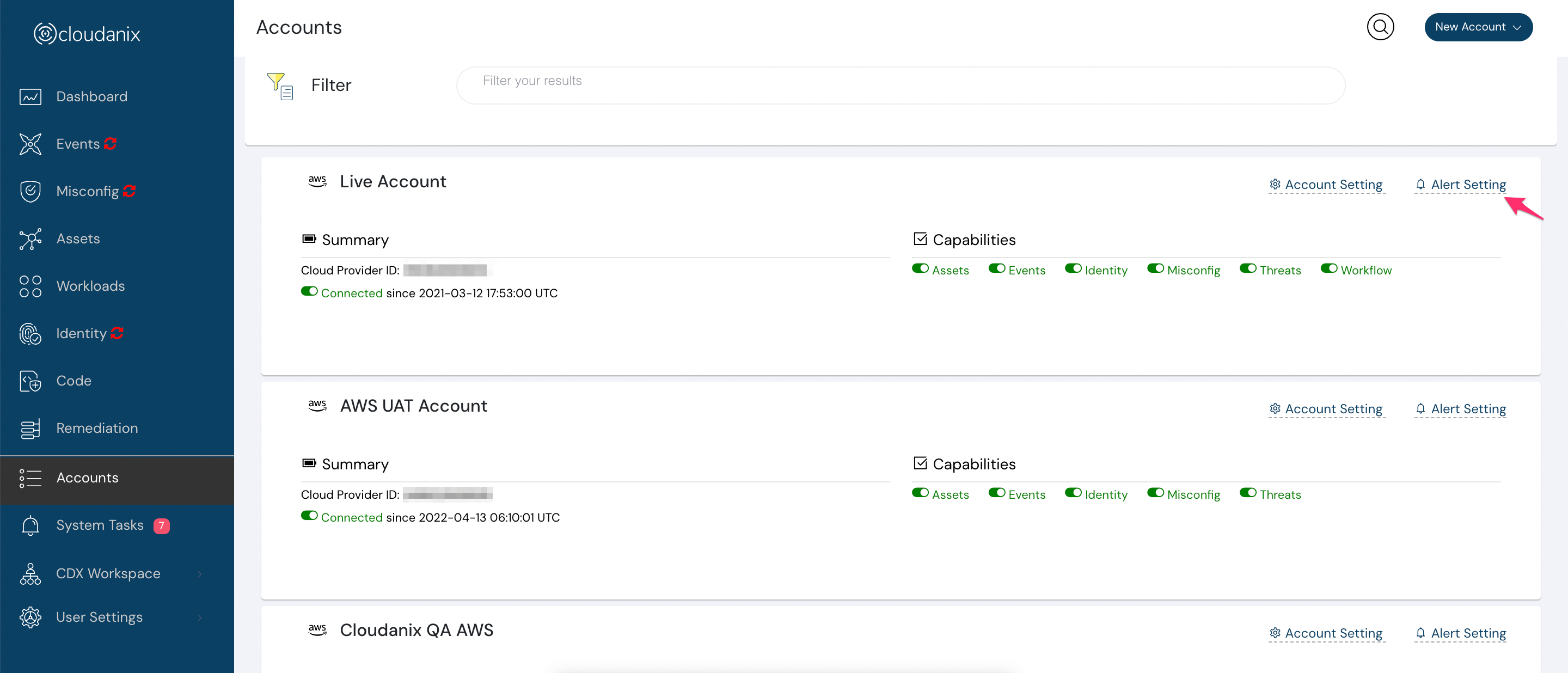
1. Login to the Cloudanix console. On the left pane select `Accounts`. This will show you all the Cloud accounts connected with Cloudanix. Select the `Alert Settings` for the account appropriate account which should be connected to PagerDuty.
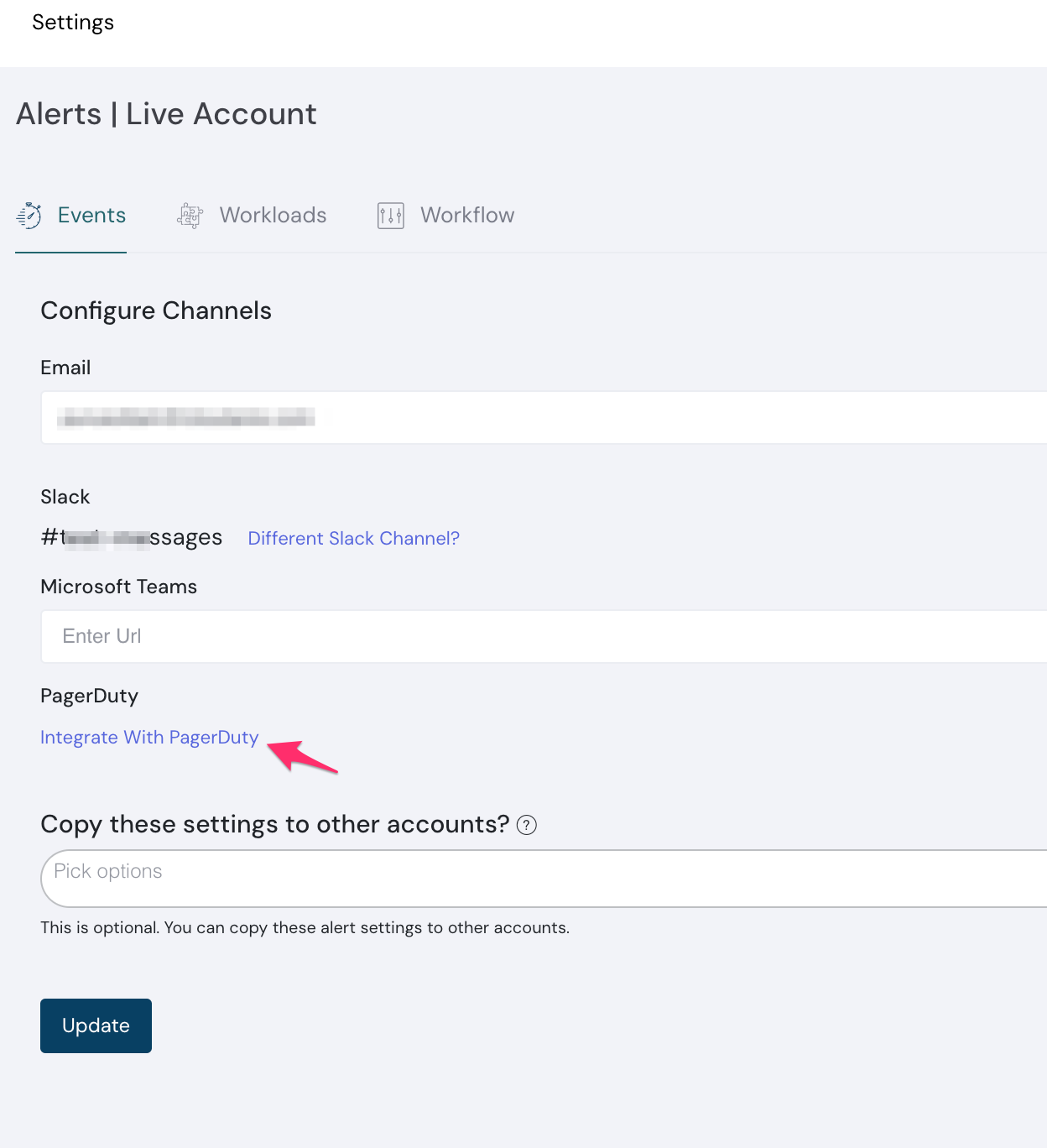
 2. In the `Alerts` page Click on `Integrate with PagerDuty` to initiate the Integration.
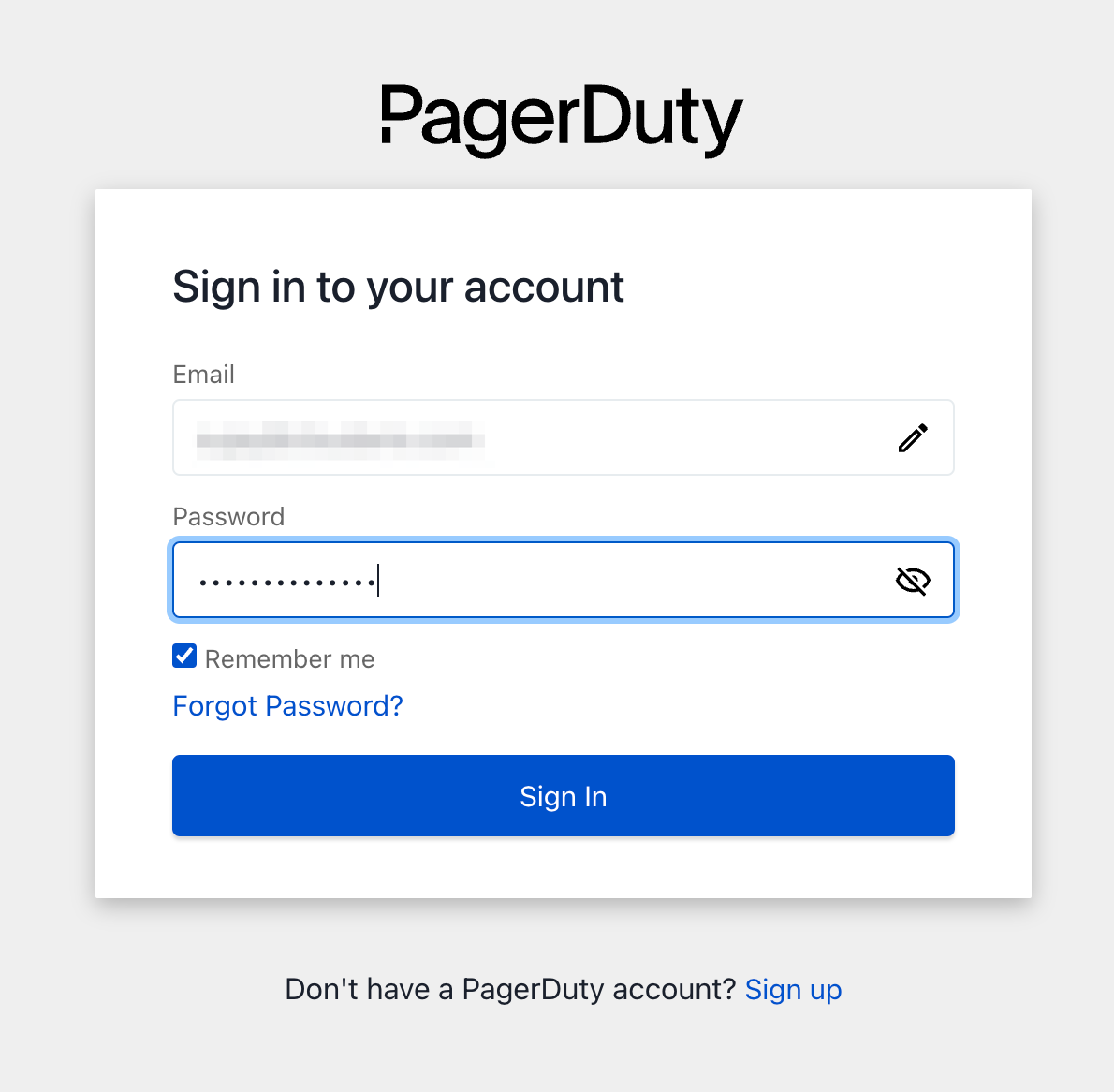
 3. Login to PagerDuty with your account details.
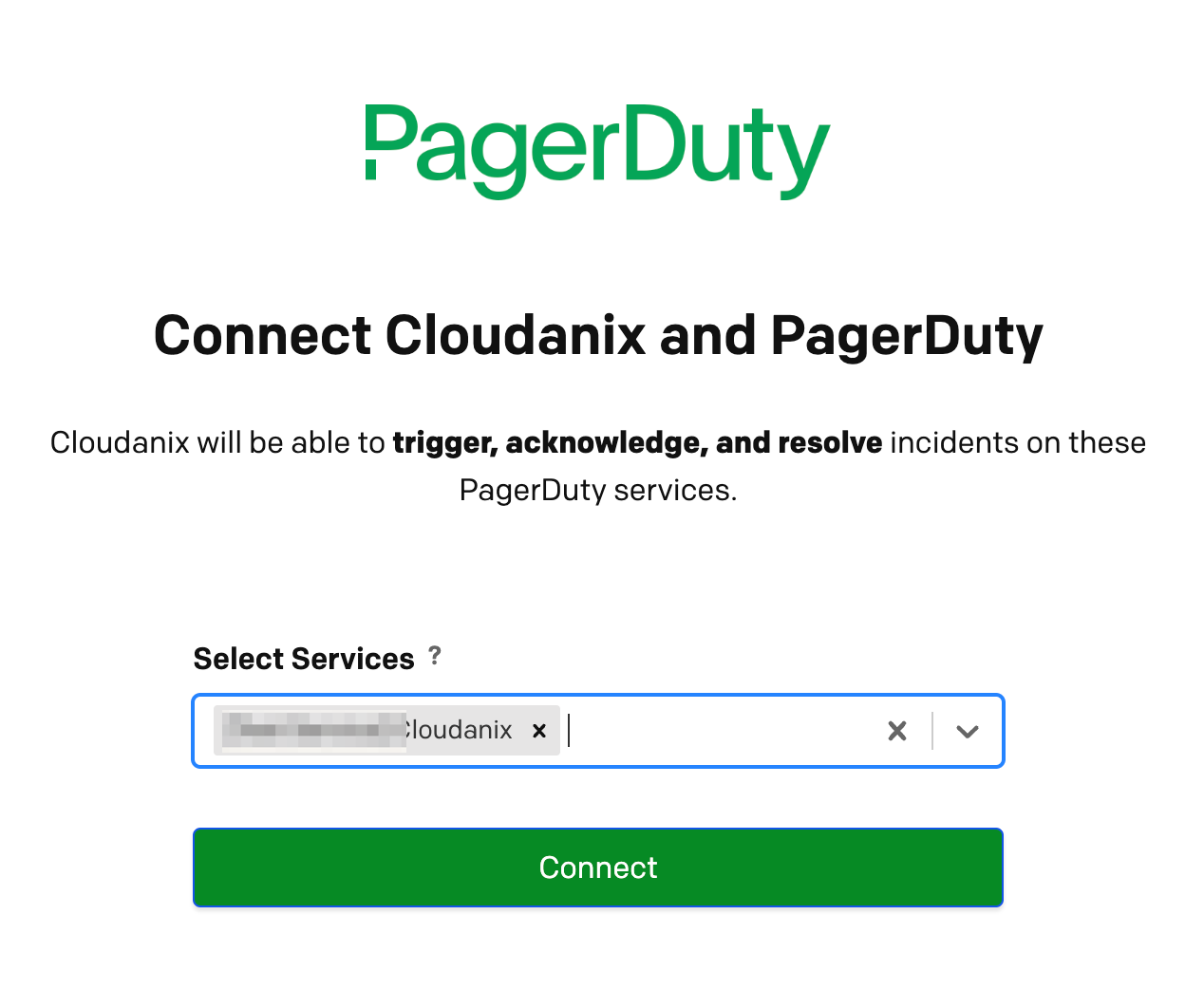
 4. Authorize and connect your Services with Cloudanix.
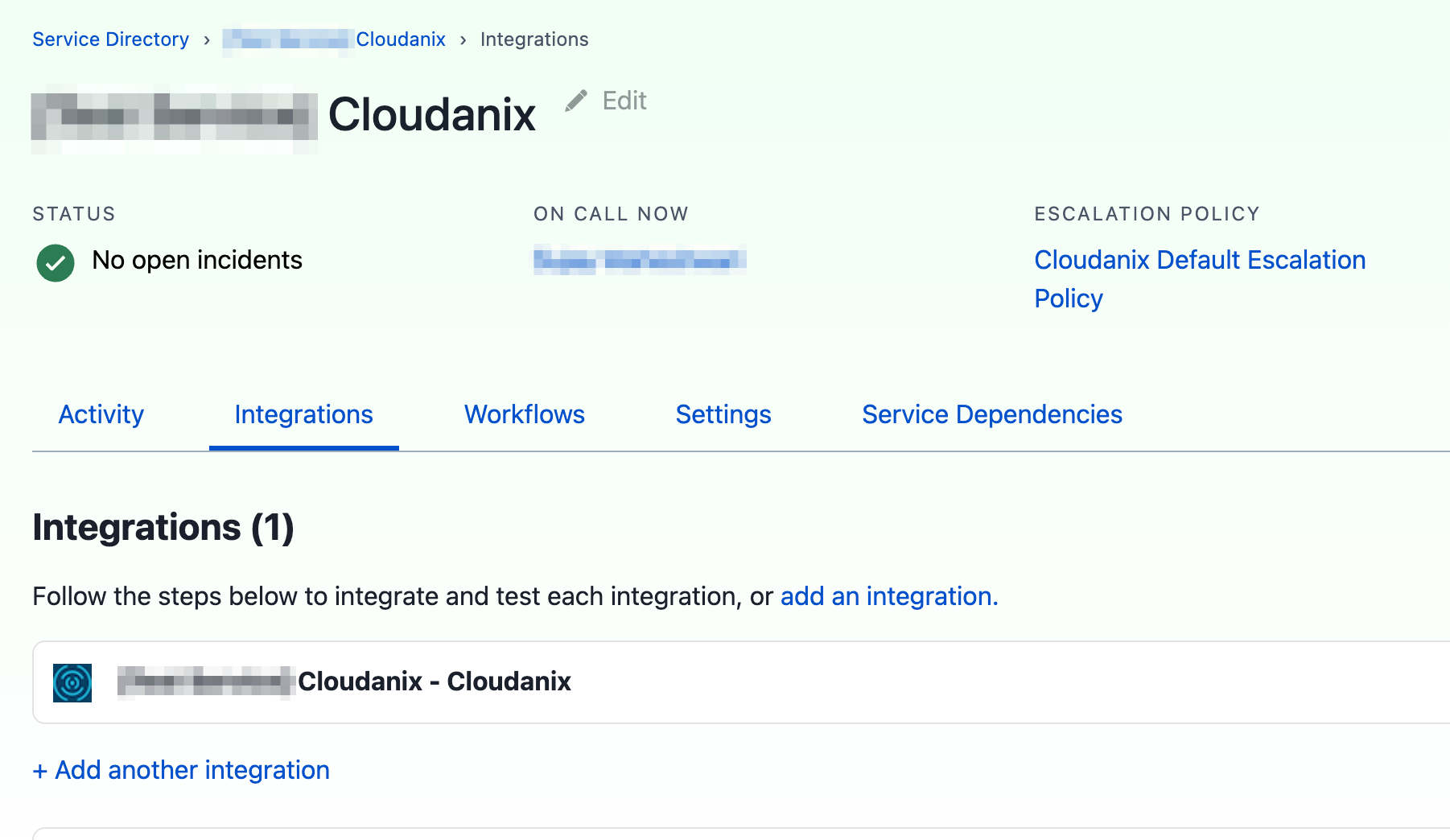
 5. In PagerDuty, you should see Cloudanix is displayed as an integration in the Integration tab for the Authorized Services.
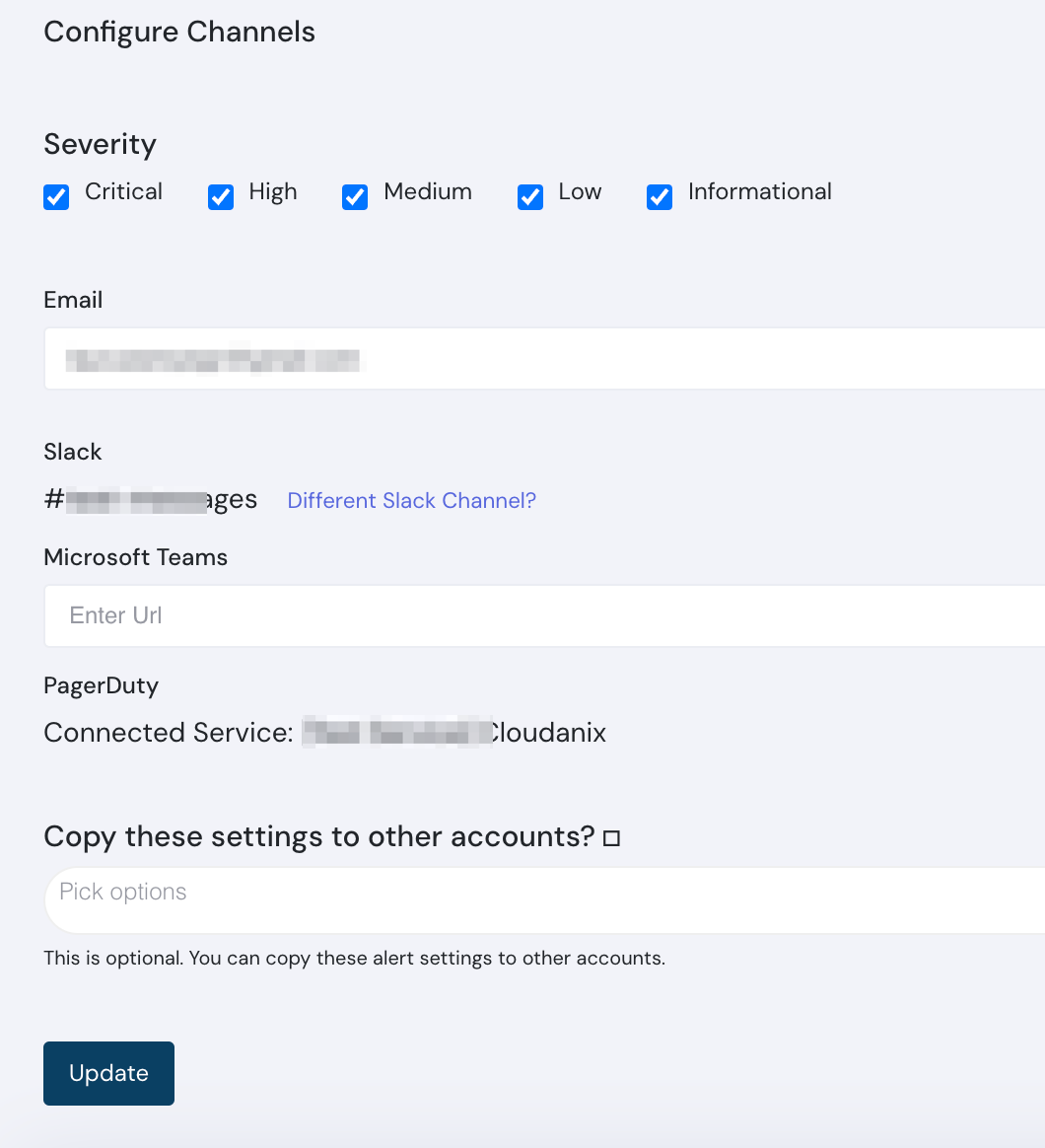
 6. Once connected, Services would be listed in Cloudanix Alerts page. Use the Severity checkboxes to push appropriate Event Findings to PagerDuty.
 7. Congratulations!. Cloudanix is now set up to push Event Findings to PagerDuty.